How to Make Facebook Private (Complete 2026 Lockdown Guide)
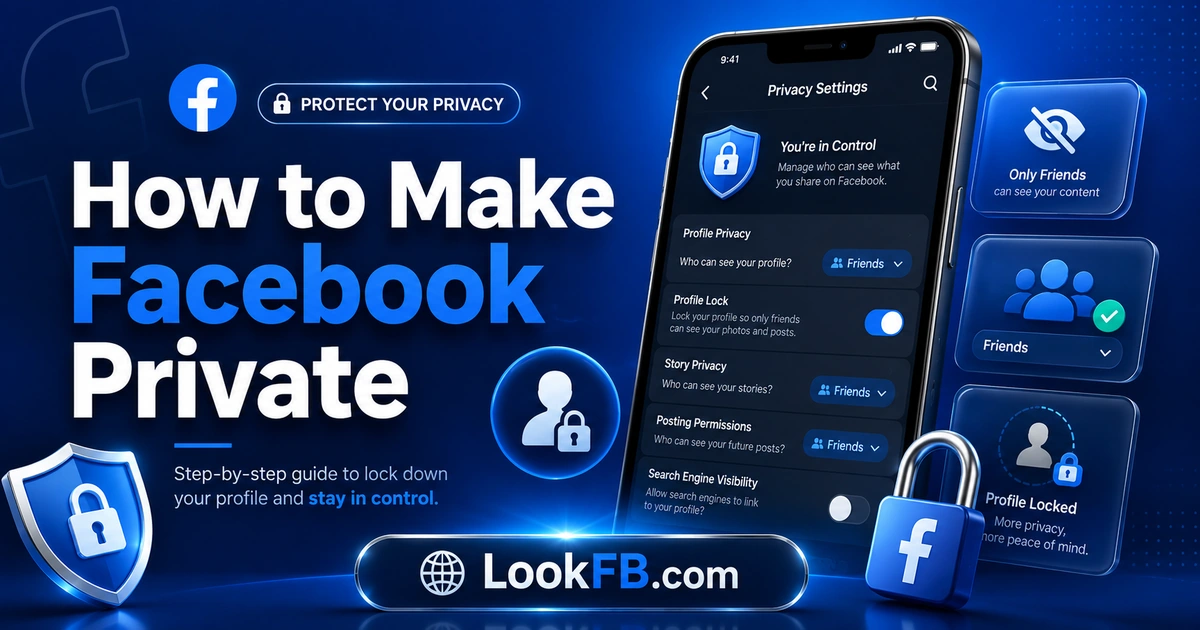
Make your Facebook profile private in 2026 — 12-step manual lockdown, past-content audit, hide from Google, and the always-public info Meta never mentions.
In this article
- Quick answer
- The always-public info Meta never tells you about
- Step-by-step manual lockdown
- Step 1: Restrict future posts
- Step 2: Limit past posts
- Step 3: Hide your friends list
- Step 4: Hide email lookup
- Step 5: Hide phone lookup
- Step 6: Disable search engine indexing
- Step 7: Restrict friend requests
- Step 8: Enable tag review
- Step 9: Enable timeline review
- Step 10: Restrict profile posting
- Step 11: Restrict Stories
- Step 12: Turn on Profile Lock (if available)
- Audit your past public content
- Past photos
- Past posts
- Past comments
- Past likes
- Past group memberships
- Past events
- Hide your Facebook from Google Search
- Speed up Google removal
- Hide your profile from search inside Facebook
- Verify with "View As"
- Common privacy mistakes
- Facebook Dating and Marketplace impact
- Opt out of Meta AI training (2026)
- The bottom line
- Related guides
TL;DR: Facebook has no single "make private" toggle — you have to configure 12 individual privacy settings and run a past-content audit to fully lock down. This guide walks through every step, includes the always-public info Meta never mentions (name, profile picture, cover photo), and finishes with the "View As" verification.
Quick answer
Complete these 12 steps in order:
| # | Setting | Set to |
|---|---|---|
| 1 | Who can see future posts | Friends |
| 2 | Limit past posts | Apply |
| 3 | Who can see friends list | Only Me |
| 4 | Email lookup | Only Me |
| 5 | Phone lookup | Only Me |
| 6 | Search engine linking | OFF |
| 7 | Who can send friend requests | Friends of Friends |
| 8 | Tag review | ON |
| 9 | Timeline review | ON |
| 10 | Who can post on your profile | Only Me |
| 11 | Story audience | Friends |
| 12 | Profile Lock (if available) | ON |
Then run View As to verify.
The always-public info Meta never tells you about
Regardless of your privacy settings, these are always visible to everyone:
- Your name — public forever, no privacy setting exists.
- Profile picture — thumbnail always visible; full-size can be locked with Profile Lock (regional).
- Cover photo — usually visible; can be limited in some regions.
- Gender — often defaults public.
- Networks (workplace/school) — public unless removed.
- Groups you post in — visible to other group members.
- Comments on public posts — visible to anyone who sees the post.
No setting removes these. If you want them hidden, the only options are: (1) leave them blank in your profile, (2) use a pseudonym, or (3) delete the account.
Step-by-step manual lockdown
Step 1: Restrict future posts
- Settings & Privacy → Settings → Audience and Visibility → Posts.
- Who can see your future posts → Friends.
- Save.
Step 2: Limit past posts
- Same page → Limit who can see past posts → Limit Past Posts → Confirm.
- This changes every historical Public post to Friends-only in one action.
- Irreversible without editing each post individually.
Step 3: Hide your friends list
- Privacy → How People Find and Contact You → Who can see your friends list → Only Me.
Step 4: Hide email lookup
- Same menu → Who can look you up using the email address you provided → Only Me.
Step 5: Hide phone lookup
- Who can look you up using the phone number you provided → Only Me.
Step 6: Disable search engine indexing
- Do you want search engines outside of Facebook to link to your profile? → Toggle OFF.
Google may take weeks to remove existing cached search results. To speed it up, submit a URL removal request through Google Search Console.
Step 7: Restrict friend requests
- Who can send you friend requests → Friends of Friends.
Not "Only Me" — that would prevent you from making new friends. "Friends of Friends" is the strict-but-usable middle.
Step 8: Enable tag review
- Privacy → Profile and Tagging → Review tags people add to your posts before the post appears on Facebook → ON.
Now every tag someone tries to add to a photo or post waits for your approval.
Step 9: Enable timeline review
- Same menu → Review what other people see on your timeline → ON.
Two levels of tag control, both essential.
Step 10: Restrict profile posting
- Profile and Tagging → Who can post on your profile → Only Me.
No one can post to your wall. This eliminates the "throwback photo" surprise.
Step 11: Restrict Stories
- Settings → Stories → Story audience → Friends.
- Also: Who can share your Stories → Friends only or off.
Step 12: Turn on Profile Lock (if available)
- Profile → three-dot menu → Lock Profile → confirm.
- Only available in India, Bangladesh, Pakistan, Sri Lanka, Nepal, and a few other markets.
- If unavailable, steps 1-11 give equivalent protection.
Full walkthrough: How to lock Facebook profile.
Audit your past public content
Making future posts private doesn't hide the last 10 years of activity. Do this audit:
Past photos
- Menu → Profile → Photos → Your Photos.
- Filter by year.
- For photos of you tagged: three-dot menu → Remove Tag or Report Photo.
- For photos you uploaded that are public: three-dot menu → Edit Audience → Friends.
Past posts
- Settings & Privacy → Activity Log → Your Posts.
- Filter by year and by audience.
- For public posts you want private: three-dot menu → Edit Audience → Friends OR Delete.
Past comments
- Activity Log → Comments and Reactions.
- Delete any comment on someone else's post you no longer want attributed to you.
Past likes
- Activity Log → Likes and Reactions.
- Remove specific likes from posts you don't want associated with your profile.
Past group memberships
- Menu → Groups → Your Groups.
- Leave any groups whose members you don't want to be visible to.
Past events
- Menu → Events → Past Events.
- Remove yourself from public event attendee lists.
This is the audit no other article walks through — it's what Meta calls "Privacy Checkup" doesn't cover.
Hide your Facebook from Google Search
Setting 6 (search engine linking OFF) is only half the battle. Google's cached results linger.
Speed up Google removal
- Go to search.google.com/search-console/removals.
- Sign in with a Google account.
- Verify ownership of your Facebook page (via URL prefix or DNS).
- Submit a temporary URL removal request for your Facebook profile URL.
- Wait 24 hours.
Alternative: use Google's public Remove Outdated Content tool for cached snippets after you've turned off indexing.
Hide your profile from search inside Facebook
Your Facebook profile still appears in Facebook Search even with all privacy settings on. To reduce:
- Change your name to something less searchable (subject to name-change lock).
- Remove your email and phone from the About section.
- Delete your workplace and school entries.
- Set your profile picture to something abstract (not your face).
Facebook won't let you fully vanish from its own search — this is Meta's business model.
Verify with "View As"
Once you've completed all 12 steps and the audit:
- Open your profile page.
- Tap the three-dot menu near Edit Profile.
- Select View As.
- You'll see your profile as a generic public non-friend sees it.
- Scroll through — if anything personal appears, go back and lock it down.
View As is your ground truth. Trust it over what settings menus say.
Common privacy mistakes
- Setting default to Friends but leaving old posts Public.
- Not turning off phone/email lookup — someone can find you with just your number.
- Enabling Public search engine linking without realizing.
- Sharing photos in Public Groups (those bypass your profile privacy).
- Tagging locations in posts (check-ins reveal your movements).
- Adding your birth year publicly (identity theft risk).
Facebook Dating and Marketplace impact
Full lockdown affects other Meta services:
- Facebook Dating — requires public/friends visibility. Full lockdown effectively opts you out.
- Marketplace — buyers can't verify your profile, get fewer messages.
- Public Groups — you can still participate, but your profile becomes less visible.
Decide whether these matter to you before locking down everything.
Opt out of Meta AI training (2026)
New 2026 setting in EU/UK/Brazil:
- Settings → Meta AI → Manage AI settings.
- Toggle Use my public content to improve Meta AI → OFF.
Not available in US as of July 2026. Legal challenge pending.
The bottom line
- No single "private" switch — you must configure 12 individual settings.
- Past content requires a separate audit — Limit Past Posts doesn't touch tagged photos, comments, likes, groups or events.
- Name, profile picture, cover photo, and Group posts are always public — no setting hides them.
- Search engine hiding takes weeks to propagate from Google's cache.
- Verify with View As every 3-6 months — Facebook occasionally adds new default-public features.
Related guides
- How to lock Facebook profile — the one-tap version where available.
- How to make your friends list private on Facebook — same as Step 3 above.
- How to know if someone blocked you on Facebook — how privacy affects visibility to specific people.
- How to see who unfriended you on Facebook — tightening privacy sometimes triggers unfriends.
- How to change facebook password — pair privacy lockdown with a fresh password + 2FA.
Frequently asked questions
how do i make my facebook account private
Facebook has no single 'make private' toggle — you configure individual settings: Settings → Privacy → set future posts to Friends, Limit Past Posts to Friends-only, hide friends list (Only Me), disable phone/email lookup, turn off search-engine linking, and enable tag review. Verify with 'View As' from your profile.
how to make your account private on facebook
Change these settings in order: (1) Posts → future audience Friends, (2) Limit Past Posts, (3) Who can see your friends list → Only Me, (4) Who can look you up by email/phone → Only Me, (5) Search engines outside Facebook → OFF, (6) Profile and Tagging → Review tags ON, (7) Story audience → Friends.
how to make your friends list private on facebook
Settings → Privacy → How People Find and Contact You → Who can see your friends list → Only Me. Save. Anyone visiting your profile now sees no friends list at all. Note: mutual friends still appear via the mutual view — that's a separate feature you can't fully hide.
how can i make my facebook profile private
Set future posts to Friends, apply Limit Past Posts, hide friends list, disable public lookup, turn off search-engine visibility, enable tag review, and restrict Stories to Friends. If Profile Lock is available in your country (India, Bangladesh, Pakistan, Sri Lanka), one tap does most of this automatically.
how to make your profile private on facebook
Open Settings → Audience and Visibility → configure Posts (Friends), Stories (Friends), Profile and Tagging (tag review ON), and How People Find and Contact You (friends list Only Me, phone/email lookup Only Me, search engines OFF). This is Facebook's equivalent of a 'private' setting.
how to make facebook friends private
Settings & Privacy → Settings → Privacy → How People Find and Contact You → Who can see your friends list → change from Public to Only Me. Save. Your friends list becomes invisible from your profile page. Mutual friends visible via someone's own profile are separate and can't be hidden.
can i make my facebook private
Yes, but not with one button. Facebook uses individual privacy toggles rather than a single private-account switch. Set future posts to Friends, Limit Past Posts, hide friends list, disable lookup, turn off search-engine indexing, and enable tag review. Verify with View As.
how can i make my facebook account private
Configure each Audience and Visibility setting: future posts → Friends, Limit Past Posts, friends list → Only Me, phone/email lookup → Only Me, search engine linking → OFF, tag review → ON, Story audience → Friends. If your country supports Profile Lock, use that as a fast shortcut.
how can i private my facebook account
Change your privacy settings one by one: future posts to Friends only, Limit Past Posts, hide friends list, block search engine indexing, restrict tag posting, and set Story audience to Friends. There's no single 'private' toggle — Facebook's model is per-setting privacy.
how do you make your friends list private on facebook
Facebook → Settings → Privacy → How People Find and Contact You → Who can see your friends list → Only Me. Save. Your list disappears from your profile view. Non-friends and even friends can no longer see who you're connected with, unless they share mutual friends with you.
Written by Maria Chen, Privacy & Account Security Specialist