How to Change Facebook Password (2026 Full Guide + Hack Recovery)
Change your Facebook password on iPhone, Android and desktop. Full 2026 walkthrough including post-hack incident checklist and forgotten password reset.
In this article
- Quick answer
- Change your Facebook password on mobile (iPhone / Android)
- Change your Facebook password on desktop
- Facebook password requirements (2026)
- Change password if you forgot the old one
- The post-hack incident checklist (the part every guide skips)
- Step 1: Recover the account
- Step 2: Change your password
- Step 3: Log out of all sessions
- Step 4: Enable 2FA
- Step 5: Check your saved contact info
- Step 6: Check email account
- Step 7: Review third-party apps
- Step 8: Check for changes the attacker made
- Step 9: Notify contacts
- Step 10: Scan your device
- What happens after a password change
- Should you turn on 2FA when changing your password?
- Change your password across Meta apps (Instagram, Threads)
- Common problems changing password
- The bottom line
- Related guides
TL;DR: To change your Facebook password in 2026, go to Settings → Accounts Center → Password and Security → Change Password, enter current + new password, and confirm. All other logged-in devices sign out immediately — this is a security feature. This guide also covers forgotten password reset, the post-hack incident checklist no other source publishes, and the exact password strength requirements.
Quick answer
| Situation | Path |
|---|---|
| Just want to change it | Accounts Center → Password and Security → Change Password |
| Forgot the old one | facebook.com/login/identify → email/SMS code → new password |
| Account was hacked | facebook.com/hacked → recover → change password → run post-hack checklist |
| Want to update passwords elsewhere | Change on Facebook first, then update Instagram/Threads if linked |
Change your Facebook password on mobile (iPhone / Android)
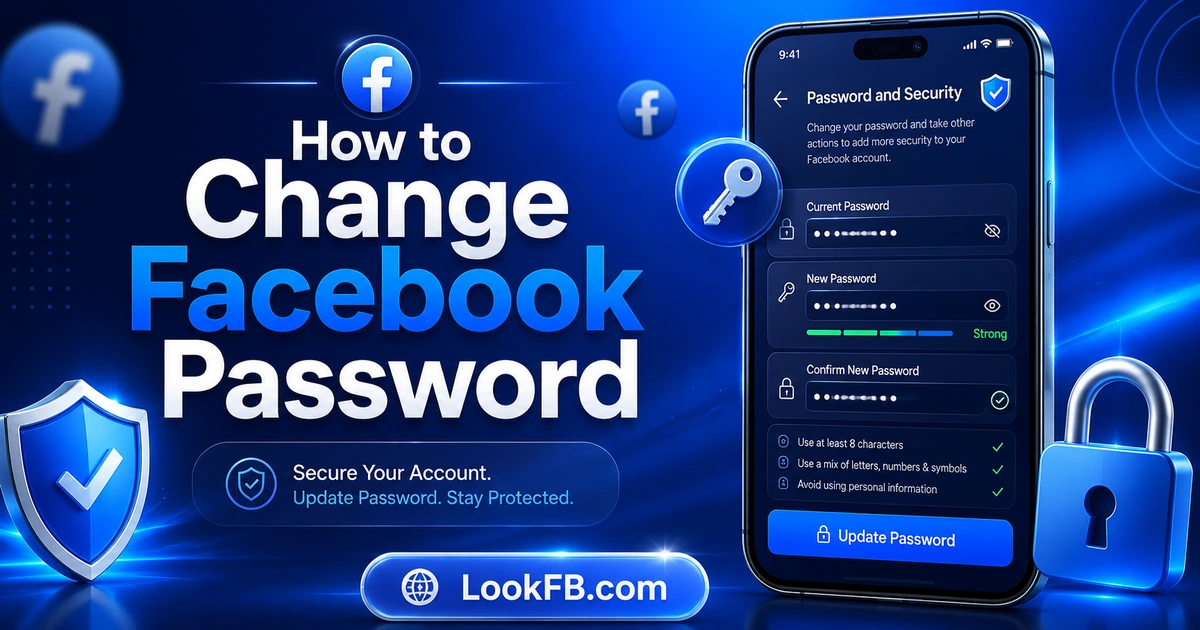
- Open the Facebook app.
- Tap your profile picture or Menu (three lines).
- Scroll down and tap Settings & Privacy → Settings.
- Tap the Accounts Center banner at the top.
- Under Account settings, select Password and Security.
- Tap Change Password → select your Facebook account.
- Enter your current password, then your new password twice.
- Tap Change Password.
Your password is updated instantly. All other logged-in sessions get signed out as a security measure.
Change your Facebook password on desktop
- Go to facebook.com and log in.
- Click your profile picture (top-right).
- Click Settings & Privacy → Settings.
- Click Accounts Center in the left sidebar.
- Click Password and Security.
- Click Change Password → choose your account.
- Enter current password, then new password twice.
- Click Change Password.
Same effect — instant update, all other sessions logged out.
Facebook password requirements (2026)
- Minimum 6 characters (Meta's absolute minimum — practically, you should use 12+).
- Must not be identical to your previous password.
- Must not be trivially derivable from your name/email (e.g., "john123" for John).
- Special characters, numbers, mixed case are all allowed.
- No maximum length.
Real-world strong password: 4 random words + a number (e.g., orange-plateau-42-desk). Or use a password manager to generate one.
Change password if you forgot the old one
If you can't enter your current password:
- On the Change Password screen, tap Forgot your password?
- You're redirected to facebook.com/login/identify.
- Enter your email, phone number, or username.
- Choose recovery method: SMS, email, or WhatsApp (Meta added WhatsApp recovery in 2025).
- Enter the 6-digit code Facebook sends.
- Set a new password.
- Confirm.
The reset link is valid for 24 hours. Do not click reset links you didn't request — those are phishing.
The post-hack incident checklist (the part every guide skips)
If you suspect your account was hacked — friends got weird messages from you, your email was changed, or your password suddenly doesn't work — do these in ORDER, not randomly:
Step 1: Recover the account
- Go to facebook.com/hacked.
- Follow the Recovery Hub steps.
- If your email was changed, Facebook can reverse it.
Step 2: Change your password
- Once inside, go to Password and Security → Change Password.
- Choose a new password not used anywhere else.
- This step logs out every session, including the attacker's.
Step 3: Log out of all sessions
- Password and Security → Where You're Logged In.
- Click Log Out of All Sessions.
- Redundant with step 2, but confirms it.
Step 4: Enable 2FA
- Password and Security → Two-Factor Authentication.
- Choose Authenticator App (Google Authenticator, Authy) — stronger than SMS.
- Save the recovery codes somewhere offline.
Step 5: Check your saved contact info
- Personal and Account Information → Contact Info.
- Confirm your email and phone are still yours (not the attacker's).
Step 6: Check email account
- Log into your email (the one tied to Facebook).
- Change email password too.
- Check for forwarding rules the attacker may have set.
Step 7: Review third-party apps
- Password and Security → Apps and Websites You've Signed Into With Facebook.
- Remove any you don't recognize.
Step 8: Check for changes the attacker made
- Activity Log — look for posts you didn't make, comments you didn't write.
- Settings → Ads → Ad Preferences — check if any ad account was linked.
- Marketplace — check for scam listings created in your name.
Step 9: Notify contacts
- Post an update: "My account was compromised — ignore messages from me over the last N days."
- Friends may have received scam DMs pretending to be you.
Step 10: Scan your device
- The hack may have come from malware on your device.
- Run a scan (Malwarebytes, Windows Defender, macOS Malware detection).
- Remove any suspicious browser extensions.
Do all 10 steps. Skipping any leaves a way back in.
What happens after a password change
- Every other device is signed out — iPhone, iPad, laptop, tablet, browser.
- You'll need to log in again everywhere.
- iCloud Keychain / Chrome Password Manager / 1Password may prompt to save the new one.
- 2FA is triggered on next login (if enabled).
- Login alerts fire for each new device login for the next few days.
Should you turn on 2FA when changing your password?
Yes. Every time. If it's off, turn it on now:
- Password and Security → Two-Factor Authentication.
- Choose Authenticator App (not SMS — SMS is vulnerable to SIM swaps).
- Scan the QR code with Google Authenticator / Authy / 1Password.
- Enter the code.
- Save the recovery codes somewhere offline (paper, password manager).
2FA blocks approximately 99% of automated account takeover attempts.
Change your password across Meta apps (Instagram, Threads)
If your Facebook account is linked to Instagram/Threads via Accounts Center:
- Changing Facebook password does NOT automatically change Instagram password (they're separate credentials).
- You must change each app's password individually.
- If you use "Log in with Facebook" for Instagram, changing Facebook logs you out of Instagram too.
Best practice: different unique password for each Meta app.
Common problems changing password
"Please enter your current password" You typed the current password wrong. Caps lock, autofill mismatch, or Instagram password by mistake.
"Your password is too similar to your current one" Meta rejects near-duplicates (e.g., changing "orange42" to "orange43"). Make a substantially different password.
"We couldn't complete this request" Rate limit — you've tried too many attempts in a short window. Wait 30 minutes.
"This password appears in a data breach" Meta cross-references known leaked password lists. Choose a different one — this specific one has been exposed.
Change succeeded but I can't log in anymore You may have mistyped the new password. Reset via facebook.com/login/identify.
The bottom line
- Accounts Center → Password and Security → Change Password — same path everywhere.
- Facebook stores hashed passwords; no one can recover your old one.
- Forgotten password: facebook.com/login/identify for a reset code.
- Enable 2FA every time you change your password.
- After a hack, run the 10-step incident checklist — password change alone isn't enough.
- All other logged-in sessions get signed out automatically as a security measure.
Related guides
- Why can't I log into Facebook — the full recovery decision tree.
- How to permanently delete Facebook account — password is required for deletion.
- How to make Facebook private — password change pairs with privacy tightening.
- How to know if someone blocked you on Facebook — after a hack, some people block affected contacts.
- How to lock Facebook profile — Profile Lock + new password + 2FA = maximum security.
Frequently asked questions
how do i change my password on my facebook
Facebook → Menu → Settings & Privacy → Settings → Accounts Center → Password and Security → Change password → select your Facebook account → enter current password + new password twice → Change Password. All other logged-in devices sign out automatically.
how to change facebook password on app
Open the Facebook app → Menu → Settings & Privacy → Settings → tap the Accounts Center banner → Password and Security → Change password → select your account → enter current + new password → tap Change Password. Change is instant; other sessions are logged out.
how to change password on facebook on iphone
Facebook app on iPhone: tap your Menu → Settings & Privacy → Settings → Accounts Center banner → Password and Security → Change password → tap your Facebook profile → type current password, new password, confirm new password → Change Password. Face ID may prompt to save the new password.
how to change facebook password iphone
Menu → Settings & Privacy → Settings → Accounts Center → Password and Security → Change password → Facebook account → current + new password → confirm → Change Password. On iPhone, choose Save Password in iCloud Keychain when prompted for auto-fill next time.
how to find your facebook password
Facebook stores passwords hashed — no one, including Meta, can see your actual password. If you saved it in iCloud Keychain: Settings → Passwords → search Facebook. In Chrome Password Manager: chrome://settings/passwords. In 1Password/Bitwarden: search Facebook. Otherwise, reset it via facebook.com/login/identify.
how do facebook accounts get hacked
Three main ways in 2026: (1) password reuse — your password leaked from another site's breach, (2) phishing links via Messenger fake 'Facebook Support' pages, and (3) session cookie theft via malicious browser extensions. Turn on 2FA, use unique passwords, never enter your Facebook login on any site that isn't facebook.com.
how facebook account hack
Most Facebook hacks happen through phishing (fake login pages sent as Messenger links) and credential stuffing (a password leaked from another site tried on Facebook). Enabling two-factor authentication blocks 99% of automated attacks. Use a password manager and never share verification codes.
how facebook hacking
Hackers target Facebook via phishing kits, credential-stuffing bots, session cookie theft, and social engineering (fake Meta emails). The single biggest defense is 2FA plus a unique password. Facebook itself is rarely 'hacked' — user accounts are, through predictable and preventable methods.
how to turn off two factor authentication facebook
Facebook → Settings & Privacy → Settings → Accounts Center → Password and Security → Two-Factor Authentication → select your account → Turn Off. Confirm with a current 2FA code. Note: turning off 2FA removes your strongest defense against account takeover. Don't disable it unless you have a specific reason.
how to delete facebook account without password
You can't. Facebook requires your password as the final delete confirmation. If forgotten, reset first: facebook.com/login/identify → enter email/phone → receive code → new password → then proceed with deletion via Accounts Center → Personal Details → Account Ownership and Control → Delete Account.
Written by Maria Chen, Privacy & Account Security Specialist