How to Stop Facebook Notifications (Every Type, 2026 Guide)
Stop Facebook notifications on iPhone, Android and email — including friend suggestions, tagging, ads, and Group alerts. Full 2026 walkthrough.
In this article
- The 9 notification streams (and where to turn each off)
- 1. Stop push notifications (mobile app)
- 2. Stop Facebook email notifications
- 3. Stop SMS notifications
- 4. Silence Group notifications
- 5. Silence Marketplace notifications
- 6. Silence Event and Birthday notifications
- 7. Reduce ads (you can't stop them completely)
- 8. Stop Facebook from silencing your music
- 9. Stop people from tagging you
- 10. Stop friend suggestions
- The "notifications quiet time" trick
- When notifications keep coming despite settings
- The bottom line
- Related guides
TL;DR: Facebook has 9 separate notification streams in 2026 — Push (mobile), Email, SMS, Groups, Marketplace, Events, Birthdays, Ads, and Tags. Each has its own kill switch. This guide walks through every one, plus the Ad and Friend Suggestion nuisance that most people never realize can be muted.
The 9 notification streams (and where to turn each off)
| Stream | Setting path | Nuclear option |
|---|---|---|
| Push (mobile app) | Settings → Notifications → Where You Receive Notifications → Push | System-level off in iOS/Android |
| Settings → Notifications → Email | Set to Only Security | |
| SMS | Settings → Notifications → SMS | Turn off SMS |
| Groups | Group → Notifications icon (bell) | Off / Highlights / Friends' Posts |
| Marketplace | Menu → Marketplace → Settings → Notifications | Off |
| Events | Settings → Notifications → Events | Off |
| Birthdays | Settings → Notifications → Birthdays | Off |
| Ads / Sponsored | Settings → Ads → Ad Preferences | Limit categories |
| Tags | Settings → Profile and Tagging → Review Tags | Enable Review |
1. Stop push notifications (mobile app)
The biggest source of Facebook nag.
In-app:
- Facebook → Menu → Settings & Privacy → Settings.
- Tap Notifications.
- Tap Where You Receive Notifications → Push.
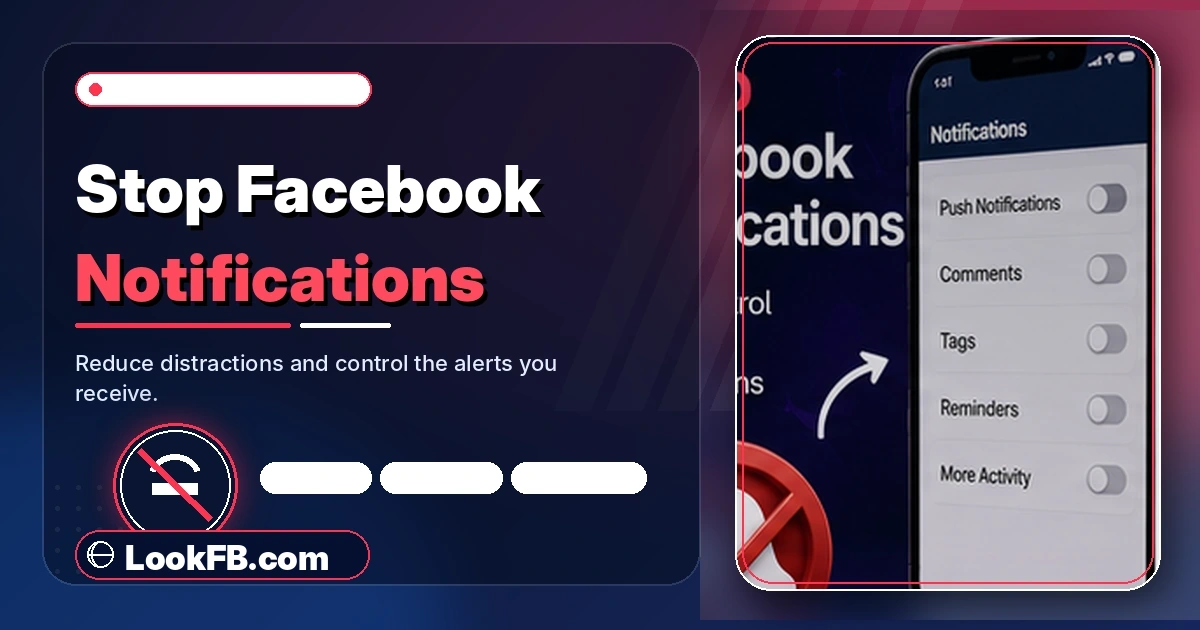
- Turn categories off — reactions, comments, tags, friend requests, Marketplace, birthdays, memories, events, live videos, Reels, and Groups all have separate toggles.
System-level (nuclear):
- iPhone: Settings → Notifications → Facebook → Allow Notifications → OFF.
- Android: Settings → Apps → Facebook → Notifications → OFF.
Nuclear stops everything from Facebook, including messages routed through the main app.
2. Stop Facebook email notifications
Facebook sends thousands of emails a year to a busy user.
- Facebook → Settings & Privacy → Settings → Notifications → Email.
- Choose one:
- All notifications, except the ones you unsubscribe from (default; noisy).
- Only notifications about your account, security and privacy (recommended).
- Off — you'll only get password resets and legal notices.
If you can't reach settings, click Unsubscribe at the bottom of any Facebook email — it takes you directly to the email preferences page.
3. Stop SMS notifications
Rarely enabled by default in 2026, but if yours are on:
- Settings → Notifications → SMS.
- Toggle off, or restrict to login codes only.
4. Silence Group notifications
Groups are a huge notification source, especially large ones.
- Open the group.
- Tap the bell icon at the top.
- Choose:
- All Posts — noisy.
- Highlights — Facebook decides what's important.
- Friends' Posts — only what your friends post in the group.
- Off — silent, still a member.
For heavy Group users, Highlights or Friends' Posts is the right middle ground.
5. Silence Marketplace notifications
Marketplace's price-drop alerts and seller messages pile up.
- Menu → Marketplace.
- Tap the profile icon → Settings.
- Notifications → toggle off Price Drops, Saved Items, and Recommendations.
Message notifications from active listings stay on unless you turn off Push entirely.
6. Silence Event and Birthday notifications
- Settings → Notifications → Events → Off.
- Settings → Notifications → Birthdays → Off.
You'll miss actual invites for a while — turn them back on for known event dates if needed.
7. Reduce ads (you can't stop them completely)
Facebook is ad-supported — full ad removal isn't possible. You can dramatically reduce personalized targeting:
- Settings & Privacy → Settings → Ads → Ad Preferences.
- Ad settings:
- Data about your activity from partners → OFF (biggest reduction).
- Ads shown off of Facebook → OFF.
- Categories used to reach you → open each and delete interests you don't want.
- Ad topics → hide any category you don't want to see.
- On any ad, tap the three-dot menu → Why am I seeing this ad? → Hide all from [advertiser].
8. Stop Facebook from silencing your music
Auto-play videos with sound interrupt Spotify/Apple Music.
- Settings → Media → Videos start with sound → OFF.
- Also Auto-play → On Wi-Fi Only or Off.
Your music stops being interrupted immediately.
9. Stop people from tagging you
Two settings, both essential:
- Settings & Privacy → Settings → Profile and Tagging → Review tags people add to your posts before they appear on Facebook → ON.
- Same menu → Review what other people see on your timeline → ON.
Every tag now waits for your approval. Approve, dismiss, or delete individually.
For a specific person: put them on your Restricted list — they can tag but their tags remain invisible to your other friends.
10. Stop friend suggestions
Facebook doesn't offer a global off switch for friend suggestions. You can:
- Dismiss individually — three-dot menu on each suggestion → Remove Suggestion.
- Remove your contact list — Settings → Media → Manage contacts → Remove Contacts. Cuts off the biggest data source Facebook uses for suggestions.
- Turn off contact sync on your phone: Settings → Facebook → Contacts → off.
The suggestions won't stop entirely — Facebook falls back to mutual friends and interests — but they drop dramatically.
The "notifications quiet time" trick
Facebook has a Do Not Disturb-style window setting most people miss:
- Settings & Privacy → Settings → Notifications → Notification Settings.
- Set Do Not Disturb hours (e.g., 10pm-7am).
All Facebook push notifications pause during that window. Ideal for people who want daytime alerts but silence overnight.
When notifications keep coming despite settings
Common causes:
- Two devices: turning off notifications in the app affects only that device. Check every phone/tablet you have Facebook installed on.
- Web version: browser notifications are separate from mobile. Turn them off at facebook.com → bell icon → gear → Notification Settings.
- Messenger notifications: Messenger has its own settings, unrelated to Facebook's.
- Meta Business Suite: if you manage a Page, that's a separate notification stream.
The bottom line
- Facebook has 9 notification streams; each has its own kill switch.
- The two biggest wins: Email → Only Security and Push → categorized off.
- Ads can't be turned off, but personalization can be dramatically reduced.
- Tag review makes tagging effectively opt-in.
- For a full mute, use the system-level toggle in iOS/Android.
Related guides
- Facebook privacy settings guide — the notification settings pair with the profile-visibility ones.
- How to know if someone blocked you on Facebook — blocked users' notifications disappear on their end too.
- How do you sign out of Facebook Messenger — for silencing Messenger specifically.
- Is Facebook Messenger down — sometimes "no notifications" isn't your settings, it's an outage.
- Facebook Dating not working — Dating uses its own notification thread; muting it separately is possible.
Frequently asked questions
how to stop email notifications from facebook
Facebook → Settings & Privacy → Settings → Notifications → Email Notifications → toggle Only notifications about your account, security and privacy (or Off entirely). This kills the flood of digest emails while keeping login and password-reset emails.
how can i stop facebook email notifications
Open Facebook Settings → Notifications → Email → choose 'Only notifications about your account, security and privacy' or turn off completely. The link at the bottom of any Facebook email also lets you unsubscribe from that category with one click.
how do i stop facebook email notifications
Go to Settings & Privacy → Settings → Notifications → Email. Set the frequency to Off or restrict to security-only. If you use Gmail, you can also filter facebookmail.com to auto-archive — but the in-app setting is cleaner.
how to stop ads on facebook
You can't stop all ads on Facebook — free service supported by advertising. You can reduce personalized targeting: Settings & Privacy → Settings → Ads → Ad Preferences → Ad settings → turn off data from partners, Categories used to reach you, and Ads shown off of Facebook.
how do you stop adverts on facebook
You can't eliminate ads entirely — they fund Facebook. To make them less intrusive: Settings → Ads → Ad Preferences → hide topics you don't want, turn off Facebook Company Products data (Instagram, WhatsApp), and use 'Why am I seeing this ad?' to block specific advertisers.
why does my music stop when i open facebook
Facebook auto-plays videos with sound in your Feed, which pauses your music. Turn it off: Settings & Privacy → Settings → Media → Videos start with sound → OFF. Also disable Auto-play in that same menu, or set it to Wi-Fi only.
how can i stop someone tagging me on facebook
You can't prevent someone from typing a tag, but you can require your approval before it appears: Settings & Privacy → Settings → Profile and Tagging → Review tags people add to your posts before they appear on Facebook → ON. Also turn on 'Review what other people see on your timeline'.
how do you stop people tagging you on facebook
Enable tag review: Settings & Privacy → Settings → Profile and Tagging → Review tags → ON. Every tag someone tries to add now waits for your approval. Combined with 'Who can see posts you're tagged in' → Only Me, this makes tagging effectively opt-in.
how to stop a person from tagging you on facebook
For everyone: enable tag review (Profile and Tagging → Review tags → ON). For a specific person: block them, or restrict them (Friends button on their profile → Edit Friends List → Restricted). Restricted friends can still tag but their tags remain invisible to your other friends.
how to stop facebook friend suggestions
Facebook does not offer a global 'stop friend suggestions' toggle. You can dismiss individual suggestions (three-dot menu on each → Remove Suggestion) and reduce future ones by clearing your Contacts sync: Settings → Media → Manage contacts → Remove Contacts.
Written by Maria Chen, Privacy & Account Security Specialist