How Do You Sign Out of Facebook Messenger? (2026 Guide)
Sign out of Facebook Messenger on iPhone, Android and desktop — with the trick for older app versions that hide the logout button. Full 2026 walkthrough.
In this article
- Quick answer
- Sign out of Messenger on iPhone
- Sign out of Messenger on Android
- Sign out of Messenger on iPad
- Sign out of Messenger on desktop (messenger.com)
- When the Log Out button is missing
- Signing out because of a hack — do this order
- Facebook logout vs Messenger logout — different buttons
- Delete Facebook, keep Messenger — the workaround
- Sign out remotely from another device
- The bottom line
You're on a shared phone, or you want a break from notifications, or you're fixing a hacked account — whatever the reason, signing out of Facebook Messenger in 2026 takes about 15 seconds once you know where the button is hidden. This guide covers iPhone, Android, iPad, desktop, and the trick when the Log Out button seems to have disappeared.
Quick answer
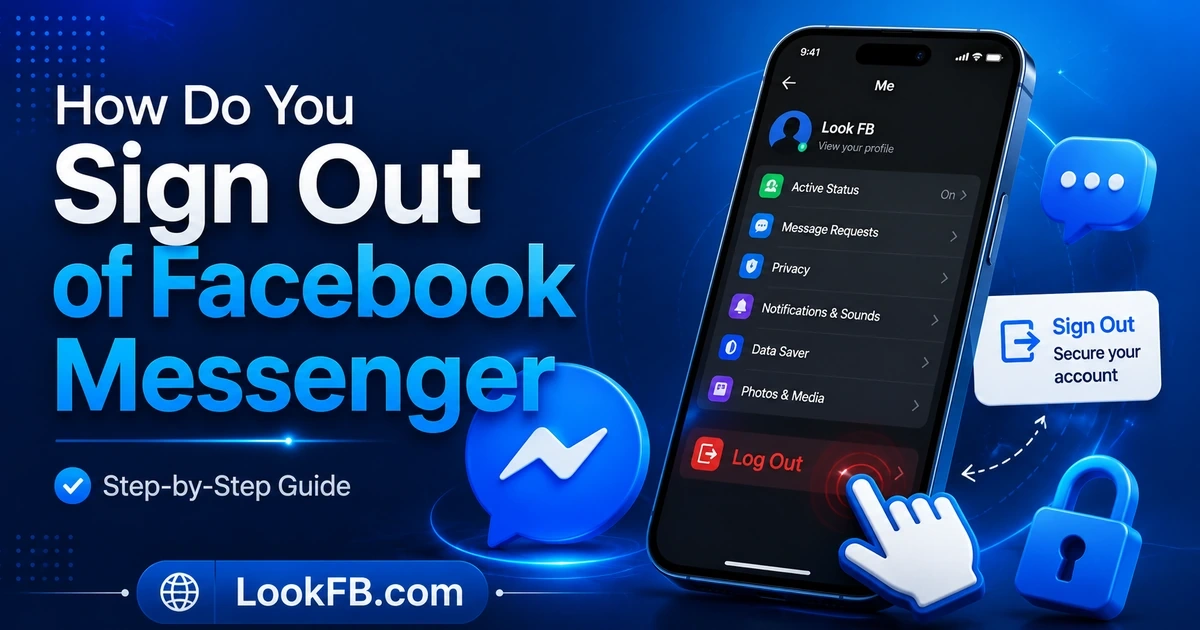
Messenger app → your profile picture (top-left) → scroll to bottom → Log Out.
That's it on both iPhone and Android. If you can't see Log Out, it's just further down than you'd expect — the settings sheet scrolls further than one screen.
Sign out of Messenger on iPhone
- Open the Messenger app.
- Tap your profile picture in the top-left corner.
- The Settings menu slides in.
- Scroll all the way down — past all the settings groups.
- Tap Log Out.
- Tap Log Out again to confirm.
Messenger closes and you're signed out. Next launch will ask for your Facebook password.
iPhone gotcha: in some iOS versions, "Log Out" is buried under Account settings → Log Out, not on the main settings screen. If you don't see it, tap Account settings first.
Sign out of Messenger on Android
- Open the Messenger app.
- Tap your profile picture in the top-left corner.
- Scroll to the bottom of the settings sheet.
- Tap Log Out.
- Confirm.
Android places Log Out on the main settings screen consistently — no burial trick.
Sign out of Messenger on iPad
Same flow as iPhone:
- Messenger app → profile picture → scroll → Log Out.
If Messenger is running in split view alongside another app, close split view first — the settings sheet needs the full app width.
Sign out of Messenger on desktop (messenger.com)
- Open messenger.com in your browser.
- Click the three-dot menu (bottom-left, next to your name).
- Click Log Out.
Or:
- Open facebook.com.
- Click your profile picture (top-right) → Log Out.
- Logging out of Facebook signs you out of messenger.com in the same browser too.
When the Log Out button is missing
You've scrolled and can't find it Force-close and reopen Messenger. In some builds the settings sheet fails to expand fully and cuts off the bottom items.
"Log Out" is greyed out Usually means you're mid-download of a large media file. Wait for it to finish or cancel it, then try again.
Messenger keeps signing you back in You may have Face ID / Touch ID enabled. Turn it off first: Settings → Face ID for Messenger → off. Then log out.
Log Out works but you're logged straight back in Your Facebook app is still signed in. Log out of the Facebook app too — they share a session.
Signing out because of a hack — do this order
If you're logging out because your account may be compromised, sign out isn't enough. Do it in this order:
- Change your Facebook password first (Facebook app → Settings & Privacy → Password and Security). This kicks out every active session.
- Enable two-factor authentication if it's off.
- Then log out of Messenger to be sure.
Logging out first without changing the password lets the attacker log back in immediately.
Facebook logout vs Messenger logout — different buttons
- Logging out of Facebook doesn't log you out of Messenger (or vice versa) on mobile.
- On desktop, they're linked — one logs both out in the same browser.
- To fully sign out on mobile, do it in both apps.
Delete Facebook, keep Messenger — the workaround
You can keep Messenger working while your Facebook account is inactive, but only with Deactivation, not full Deletion:
- Deactivate Facebook (Settings → Personal Details → Deactivation and Deletion → Deactivate account) → Messenger still works.
- Delete Facebook account → Messenger goes with it.
You can also use Messenger with a phone-number-only account (no Facebook profile), if your region supports it.
Sign out remotely from another device
Left your Messenger signed in on a laptop somewhere?
- Open the Facebook app or facebook.com.
- Go to Settings & Privacy → Password and Security → Where You're Logged In.
- Tap the session you want to end → Log Out.
That signs out the Messenger session tied to that Facebook login too.
The bottom line
- Profile picture → scroll to bottom → Log Out. That's the whole flow on iPhone and Android.
- iPhone occasionally hides it one level deeper under Account settings.
- Facebook and Messenger have separate mobile logouts — do both if you want a clean sign-out.
- If your account might be hacked, change your password first, then log out.
- To end sessions on lost devices, use Where You're Logged In from your active phone or laptop.
If you're signing out because you're worried about account security, our privacy settings guide walks through the 5 settings most likely to keep your Messenger safe long-term.
Frequently asked questions
how do you sign out facebook messenger
Open Messenger → tap your profile picture (top-left) → scroll to the bottom → tap Log Out. On iPhone the logout button sits under Account settings. Once tapped, Messenger closes and asks for your password on next open.
how do you sign out of facebook messenger
Tap your profile picture in Messenger → scroll to the bottom of the settings sheet → Log Out. If you don't see Log Out on iPhone, tap your name at the top of settings, then choose Log Out — Apple's version buries it one level deeper.
how to sign out of facebook messenger
Open Messenger → tap your profile picture (top-left corner) → scroll down through the settings menu → tap Log Out. Confirm and Messenger will sign you out. Your Facebook app stays signed in — Facebook and Messenger have separate logouts.
how do you log out of facebook messenger
Open the Messenger app → tap your profile picture at the top → scroll to the very bottom of the settings screen → tap Log Out. You'll need your Facebook password to sign back in unless you have Face ID/Touch ID saved.
how to log out in facebook messenger
In the Messenger app, tap your profile photo (top-left) to open Settings. Scroll to the bottom and tap Log Out. If you're logging out because of a hack, also change your Facebook password first — otherwise the attacker can just log in again.
how do i log out of facebook messenger
Tap your profile picture in Messenger → scroll to bottom → Log Out. On Android the button is labeled Log Out; on iPhone it's Sign Out in some versions. Same result — you'll be prompted for your password on next launch.
how to log out of facebook messenger
Open Messenger → tap your profile avatar (top-left) → scroll to the bottom of the settings list → tap Log Out. Confirm the prompt. Log out signs you out on this device only — your other Messenger sessions stay active.
how to log out facebook messenger
Open Messenger, tap your profile picture at the top-left, scroll down through all settings until you see Log Out at the very bottom, tap it, and confirm. That signs you out on the current device. Your Facebook app remains logged in unless you sign out separately.
can you delete facebook and keep messenger
Yes. Deactivating Facebook keeps Messenger working — you can chat as normal. Fully deleting your Facebook account will also delete Messenger. To keep messaging without Facebook, use 'Deactivate Facebook' (not Delete) in Settings & Privacy → Personal Details.
can you find out who views your facebook profile
No. Facebook does not — and has never — shown you who viewed your profile. Any app or Messenger link claiming to reveal profile viewers is a scam or data-harvester. This is stated directly in Facebook's Help Center.
Written by Sofia Ramirez, Messaging Apps Writer