Blackout Facebook Cover Photo: How to Set a Solid Black Cover
How to set a blackout (solid black) Facebook cover photo, why people use one, exact 820x312 sizes, and how to remove or replace your cover — full 2026 guide.
In this article
- Why people use a blackout cover photo
- Exact size: 820 x 312 pixels (upload 1200 x 675)
- How to make a blackout cover photo (3 methods)
- Method 1: The one-second way (recommended)
- Method 2: Phone screenshot trick
- Method 3: Photopea (free, browser-based)
- How to set the blackout cover on Facebook
- How to remove a cover photo (without adding a new one)
- How to fully delete the cover file (not just remove from display)
- Blackout cover troubleshooting
- Blackout cover photo etiquette
- Alternatives to a full blackout
- The bottom line
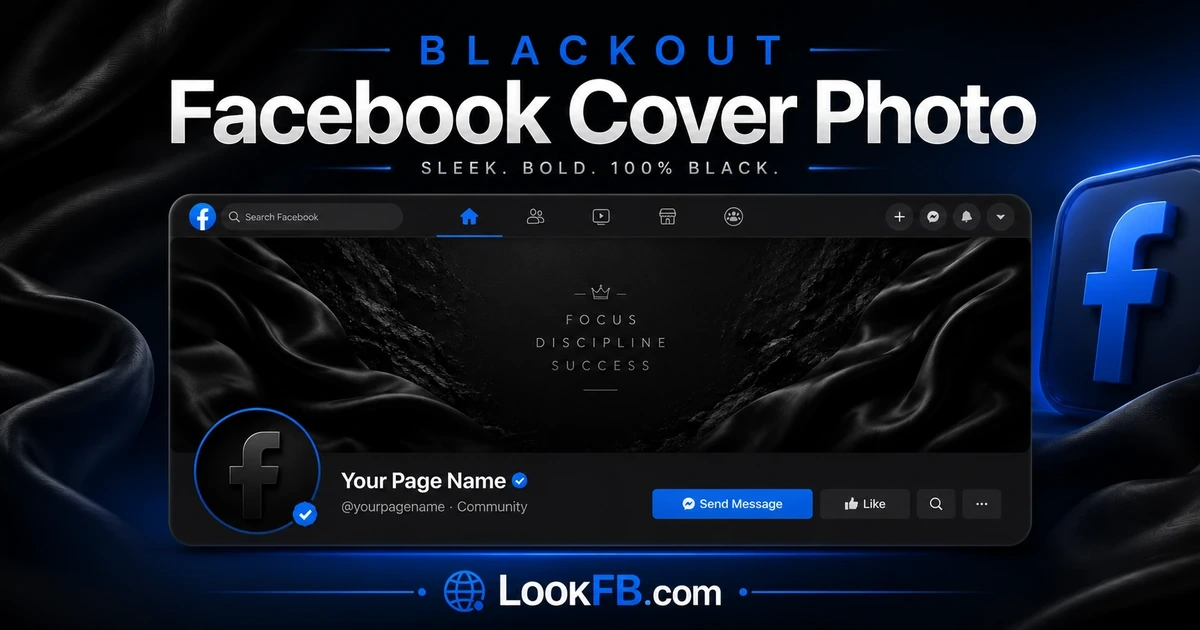
A blackout Facebook cover photo — a completely solid black image where your cover normally sits — is one of the most-searched profile customizations in 2026. This guide shows you how to set one (with a downloadable exact-size image), why people use one, and how to remove or replace it later.
Why people use a blackout cover photo
- Grief and remembrance — a common gesture after a loss or during a memorial.
- Solidarity movements — the "blackout" trend spikes during protests, awareness campaigns and social movements.
- Aesthetic minimalism — clean, dark profile that plays well with any profile picture.
- Focus on the profile photo — a black cover makes your circular profile picture pop.
- Privacy — nothing about your life is signaled in the header.
Whatever the reason, the how is the same.
Exact size: 820 x 312 pixels (upload 1200 x 675)
Facebook displays your cover photo at:
- Desktop: 820 x 312 pixels
- Mobile: 640 x 360 pixels
The two aspect ratios are different, so a perfect 820x312 image gets cropped on mobile. The safe move is to upload at 1200 x 675 — that scales down cleanly on both.
For a solid black cover you don't need to worry about crop safe zones — every pixel is black, so nothing important gets cut.
How to make a blackout cover photo (3 methods)
Method 1: The one-second way (recommended)
Right-click and save a solid black 1200x675 PNG from any free image tool — or generate one:
- Go to placeholder.com or Canva.
- Create a new 1200 x 675 px canvas.
- Fill with pure black (#000000).
- Export as PNG.
- Upload as your Facebook cover.
Method 2: Phone screenshot trick
- Open a fully black screen on your phone — lock screen while it's dim, or a black wallpaper.
- Take a screenshot.
- Crop to a rough 16:9 rectangle.
- Upload to Facebook.
Facebook auto-scales it. Result: solid black cover.
Method 3: Photopea (free, browser-based)
- Open photopea.com.
- File → New → Width 1200, Height 675, Background Custom color → set to
#000000. - File → Export as → PNG.
- Upload as cover.
How to set the blackout cover on Facebook
On desktop:
- Go to your profile.
- Hover over the cover photo area.
- Click the camera icon ("Edit Cover Photo").
- Choose Upload Photo.
- Select your black image.
- Drag to reposition (irrelevant for black), then click Save Changes.
On mobile (iPhone/Android):
- Tap your profile picture → your profile page.
- Tap the cover image.
- Tap Upload Photo.
- Choose your black image.
- Tap Save.
Change is live instantly.
How to remove a cover photo (without adding a new one)
If you want no cover at all — a plain gray placeholder:
Desktop:
- Hover over the cover.
- Click the camera icon.
- Click Remove.
Mobile:
- Tap the cover.
- Tap Remove.
How to fully delete the cover file (not just remove from display)
Removing your cover from your profile display doesn't delete the file — Facebook keeps it in your Cover Photos album. To fully delete:
- Go to Photos → Albums → Cover Photos.
- Open the photo you want gone.
- Click the three-dot menu (top right on desktop, top of image on mobile).
- Choose Delete Photo.
- Confirm.
Deleted photos sit in your Trash for 30 days before permanent deletion. To purge immediately: Settings & Privacy → Activity Log → Trash → Delete All.
Blackout cover troubleshooting
Image uploads but looks dark gray, not black Facebook compresses images. Upload as PNG (not JPG) — JPG compression softens pure black slightly.
Cover crops weirdly on mobile You used a 820x312 image. Re-upload at 1200x675 — that ratio survives mobile crop.
Can't upload — "file too large" Cover photos must be under 100MB. If yours is larger, resize down.
Image looks pixelated Cover images below 400px wide get stretched. Use at least 1200 wide.
Blue border around a black image That's Facebook's UI element (older-generation mobile). Not the photo itself — nothing you can fix from the image.
Blackout cover photo etiquette
- After a public tragedy: blackout covers are widely understood as respect. No caption is needed.
- Personal loss: consider a short pinned post explaining, so friends understand.
- Political statements: they will drive strong reactions. Be prepared for both support and pushback.
- Duration: most people revert within days to weeks. A permanent blackout can suggest an inactive account.
Alternatives to a full blackout
- Charcoal gray (#1a1a1a) — reads darker on Facebook's white background but avoids the "empty" look of pure black.
- Black with a small text overlay — a date, a name, a slogan in white or gray in the center.
- Black gradient — dark at the top fading to lighter black, adds subtle depth.
- Symbolic minimalism — a small ribbon or icon centered on black.
Any of these can be built the same way as the blackout — replace the "fill with black" step with "add gradient / add text / place symbol."
The bottom line
- Upload a 1200x675 pure-black PNG for a clean blackout cover on both desktop and mobile.
- Remove ≠ delete. Removing the cover leaves the file in your Cover Photos album; deleting requires an extra step.
- PNG stays truly black; JPG can turn slightly gray after Facebook compression.
- The blackout has meaning attached to it — pick your timing and context.
Want to lock down the rest of your profile the same way? See our full Facebook privacy settings guide — controlling who sees your cover is a two-click setting most people never touch.
Frequently asked questions
how to remove cover photo on facebook
Go to your profile → hover over your current cover → click the camera icon → Remove. On mobile: tap your profile → tap the cover → Remove. Your cover reverts to a plain gray placeholder.
how to delete cover photo on facebook
Removing your cover from your profile doesn't delete the underlying photo file — it's still in your Cover Photos album. To fully delete: go to Photos → Albums → Cover Photos → open the photo → three-dot menu → Delete Photo.
how do i remove cover photo from facebook
On desktop, hover over the cover and click the camera icon → Remove. On mobile, tap the cover image → Remove. The change happens instantly; there's no confirmation dialog to click through.
how do you remove a cover photo from facebook
Open your profile, click (or tap) the cover, then choose Remove from the menu. Your profile reverts to a plain gray cover placeholder. To fully delete the file, also remove it from your Cover Photos album.
how to delete cover photo from facebook
First remove it from your profile display (profile → cover → Remove). Then delete the file: Photos → Albums → Cover Photos → tap the photo → three-dot menu → Delete Photo. Both steps are needed for a full removal.
how to resize facebook cover photo
Facebook displays cover photos at 820x312 pixels on desktop and 640x360 on mobile. Upload at 1200x675 for crisp results on both sizes. Use any free editor (Photopea, Canva, GIMP) — create a 1200x675 canvas and export as PNG or JPG.
how can i delete a photo from facebook
Open the photo → click the three-dot menu (or tap the menu on mobile) → Delete Photo → Confirm. Deleted photos sit in Trash for 30 days before permanent removal; empty Trash immediately from Settings & Privacy → Activity Log → Trash.
how can i remove a photo from facebook
Removing hides or untags a photo; deleting removes it permanently. To hide from your timeline: tap the photo → menu → Hide from Timeline. To delete permanently: tap the photo → menu → Delete Photo → Confirm.
how to delete a photo of facebook
Tap the photo → three-dot menu → Delete Photo → Confirm. If it's a profile or cover photo, first remove it from display. Deleted photos stay in Trash for 30 days before Facebook purges them for good.
how do i change my photo on facebook
For profile picture: tap your current avatar → Update Profile Picture → choose or upload a new photo. For cover: hover or tap the cover → camera icon → Upload Photo. Both changes go live instantly.
Written by Aisha Bello, Consumer Technology Writer